

Gear Live Tech Videos: Articles Tagged Linux
Latest Andru Edwards Videos
Bleeding Edge TV 468: Ubuntu for smartphones preview

Posted by Andru Edwards Categories: Cell Phones, Features, Handhelds, Podcasts, Software, Videocasts, Videos,
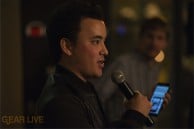
Did you know that Linux Ubuntu is coming to smartphones to take on iOS, Android, Windows Phone, and Blackberry? It's true - and we bring you a first look at the Linux Ubuntu smartphone OS in this video as we interview Canonical's Richard Collins. What do you think of the all gesture-based interface with no hardware buttons? The demo was run on a Samsung Galaxy Nexus. Check it out!
Don't forget to subscribe to Gear Live's YouTube channel!
Gallery: Bleeding Edge TV 468: Ubuntu for smartphones preview



Advertisement
Bleeding Edge TV 231: Eee PC Full Desktop Mode, and installing Beryl for more awesomeness
Posted by Andru Edwards Categories: Full Episodes, Gizmatic, Features, Mods / Hacks, PC / Laptop, Podcasts, Software, Videocasts,
The second in our series of Asus Eee PC how-to videos, this episode features instructions on how to activate the Eee PC‘s hidden Full Desktop Mode, a power-user mode featuring a launcher similar to the Start menu from Windows. Additionally, Nate True demonstrates how to activate Beryl, a 3d desktop effect engine that adds stunning visual effects to your desktop, including windows that stretch and wobble like Jell-O when you move them around and a rotating desktop cube display.
The process to install and activate Beryl is a bit involved, though the results are quite worth it. Check out the video for the details - and as promised, here are the two long lines so you can copy and paste them to your console:
To authorize the community Eee PC repository:
curl http://download.tuxfamily.org/eeepcrepos/key.asc | sudo apt-key add -
Remember the trailing hyphen (-) IS required. To authorize the Beryl repository:
curl http://debian.beryl-project.org/root@lupine.me.uk.gpg | sudo apt-key add -
Again, the ending hyphen (-) is required. We have a few more Eee PC hacks on the way, so be sure you are subscribed so you don’t miss any.
Gallery: Bleeding Edge TV 231: Eee PC Full Desktop Mode, and installing Beryl for more awesomeness
Bleeding Edge TV 194: SanDisk Sansa TakeTV Demonstration
Posted by Andru Edwards Categories: Gizmatic, Short Bytes, Features, Home Entertainment, Movies, Podcasts, Portable Audio / Video, Videocasts,
When it comes to the SanDisk Sansa TakeTV device, we’ve done an unboxing video and even show you how to set up the TakeTV in your home. In our latest video, we show you how the darn thing works. We have it hooked up already, so now it’s time to put some content on it and fire it up. Do note, the Sansa TakeTV does ship with a couple of sample video clips already on it in case you just want to test your setup.
Once we put some video files on it, we were able to watch some of them on the device - we forgot that the TakeTV doesn’t support high definition video, so those clips failed to play. Other than that, this is really a no brainer. There isn’t even a complicated menu system. You plug the device in to your TV, and you get a list of videos to play. Easy. Check it out, and let us know if there are any other questions we can answer for you guys.
Gallery: Bleeding Edge TV 194: SanDisk Sansa TakeTV Demonstration
Bleeding Edge TV 126: Neuros OSD Interview
Posted by Andru Edwards Categories: Gizmatic, Short Bytes, Accessories, CES, CES 2007, Features, HDTV, Home Entertainment, Music, Videocasts,
We stopped by the Neuros room at CES and spoke with Joe Born about the Neuros OSD. This is the open source, Linux-based media center device that is starting to pick up and is generating a strong community of developers looking to use it to create the best media center device out there. It will be hitting the market soon, and based on what we saw, we think this one will be a viable alternative to some of the more stagnant media receivers out there. Check the video to find out why.