Clicky

On The Bleeding Edge: Bleeding Edge TV 322: Motorola DROID Review

We’re giving away a limited edition Modern Warfare 2 Xbox 360 bundle!

We are kicking off our holiday giveaways with a bang! We’ve teamed with our friends at shoot it! to bring you this Modern Warfare 2 Xbox 360 limited edition console, a $400 value. The bundle includes a custom Xbox 360 console with exclusive design, a 250GB Xbox 360 hard drive, Call of Duty Modern Warfare 2, a pair of black controllers, and more. It hits stores on November 10th, and we’ve pre-ordered one that we’re giving away to one of you. Be sure to check out the giveaway rules to see how to enter!

Latest Video: Bleeding Edge TV 322: Motorola DROID Reviewx

In this video we give you a preview and walkthrough of the new Motorola DROID smartphone from Verizon Wireless. We go over Android 2.0, Google Maps Navigation, the QWERTY keyboard, and more.
Play Video
Close Player   Episode Permalink Comment on this Video Subscribe to this show via iTunes, Miro, or RSS Download for: iPod High Definition
Monday September 5, 2005 11:01 pm

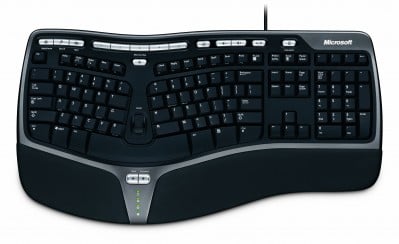
Microsoft Natural Ergonomic Keyboard 4000 Review
Posted by Rob Stevens Categories: Accessories, Features, Peripherals, Product Reviews

Microsoft NEK 4000 Review

Let me get this out of the way; I’m a keyboard snob.  I’ve been typing for a very long time, and still have fond memories of my IBM Selectronic (with its very nice “buckling spring” keys), and my old Northgate Omnikey, with those wonderful programmable keys.  (Geek Cred +2)  I hoard keyboards like they’re going out of style, because you never know when a company will stop making the perfect keyboard and leave you out in the cold.

However, since developing some severe RSI in both wrists, I had to move to a more ergonomic keyboard; a standard “straight” keyboard would have my wrists in flames in less than 10 minutes.  Microsoft was one of the first companies to perform major research into ergonomics, and developed the first of what would become known as a “split” keyboard, branded under the “Natural” moniker.

The first of the Natural keyboards, the Natural Pro, was a gift from the almighty himself.  As with any new keyboard layout, it took some adjustment to get used to it, but I noticed right away that the RSI that I’d developed was gone.  Spending a little more time practicing with the keyboard, and my typing speeds improved even over my previous scores, and the keyboard had a fantastic “aural” response.  You could hear me typing on that thing from across the office.  There were some differences in the key layout, however, that had some people up in arms.  Microsoft would change the layout of the 3x2 key grouping that contained the Delete, Insert, Home, etc., to a 2x3 layout of only five keys … removing the Insert key entirely and doubling the size of the Delete key.  It was a controversial change, but one I came to embrace. 

A series of refinements came to the line, starting with the slimmer “Elite” model, which many people still swear by to this day, but which also came with a new key configuration for the arrow keys, changing the “inverted T” to a cross layout with smaller keys.  The Natural Multimedia would come later, adding specific keys for commonly used programs, as well as a two-port USB hub, but it retained that wonderful loud “clackity” sound.  After that, it seemed as if there was no further development into the ergonomic keyboard design, and rumors started to spread that they simply weren’t selling as well as they should.

Finally, when Microsoft jumped into wireless technologies, they released a wireless desktop set called the Wireless Optical Desktop Pro.  It features a wireless version of the Natural Multimedia with slick translucent keys, and while the sound had been reduced somewhat, it was still easy to hear when you were making good contact with the keys.  They also introduced an “F-Lock button, which can convert your F-keys into dedicated keyboard shortcuts for New, Open, Close, etc.  Today, I use the Natural Multimedia at work, and the Natural Desktop Pro at home.  The wireless feature ended up being far more useful than I had anticipated … sometimes it’s nice to be able to just grab the keyboard and toss it aside to give yourself more desk space.


Microsoft Natural Ergonomic Keyboard 4000 Review

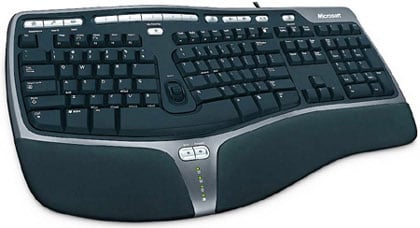
Recently, Microsoft has shown that they’ve done some additional research into the ergonomic keyboard, modifying the standard straight layout with what they call a “Comfort Curve”.  The keys are still flat, but there is a slight downward curve towards the middle, and some of the middle keys are elongated.  (Acer has experimented with a similar design on some of its newer notebooks.)  I admit to having shown some curiosity, but I simply couldn’t bear to leave my split keyboard for this Johnny-Come-Lately.  The Comfort Curve has been featured in a couple of different desktop sets, including the recent Wireless Optical Desktop 5000.

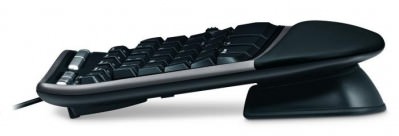
Today, that’s all changed.  Microsoft’s first truly new ergonomic keyboard design in many years has been revealed - the Natural Ergonomic Keyboard 4000.  Redundant nomenclature aside, the new keyboard sports a hybrid design that borrows from both the Comfort Curve and the Natural series to deliver a new feel.  The first thing you’ll probably notice out of the box is not the keys, but the “front tilt plate” that comes preinstalled.  This raises the palm rest and puts the keyboard on a downward slope, similar to the feet on the original Natural Keyboard.  For those that prefer a flat keyboard, the tilt plate can be removed, and there are even feet that can raise the back of the keyboard up, if you like.  The keyboard is their thinnest ergonomic model yet.
Description


The 4000 also features changes to the multimedia key layout, with specific keys for launching your web browser, e-mail client, and a Search button (which brings up the search window in whatever program you’re currently using).  There are volume up and down keys, a mute key, play/pause, and a Calculator button (which I use frequently).  Missing in action are the logout and sleep keys, which I also used frequently, and buttons for My Documents, My Pictures, My Music … pretty much any of the “my” folders which Microsoft created for Windows XP.

Replacing these buttons are five “My Favorites” keys, which do not come pre-configured.  You can use the Microsoft IntelliType Pro software (version 5.3 comes in the box) to assign any program you like to these keys.  Since they keys are labeled simply 1-5, you could possibly forget which programs are assigned to which key, but Microsoft covered their bases here by including a “star” key which will bring up your list of favorites and allow you to change them.

Microsoft has decided to use the space between the “split” to add a Zoom slider, borrowed from their Office series of keyboards.  By default, you can use this slider to zoom in and out of documents and pictures, and can be set to zoom faster the longer the slider is held in one position.  I’m not sold on the usefulness of such a feature; in practice, the zoom slider is too far away to be reached comfortably, and changing the size of my documents is something I rarely do. If slider could have been reconfigured to be a scroll wheel, that might have been far more useful.  Microsoft adds Back and Forward keys just under the space bar.

In typical fashion, Microsoft isn’t finished playing with the key layouts.  While the six-key layout of the Delete, Insert, and Home set of keys has returned, Microsoft has also added four new keys above the number pad: an Equals key, Open and Closed Parentheses, and another (smaller) Backspace key.  Disappointingly, Microsoft has made the keyboard much quieter, and the keys don’t have quite the same tactile response as some of their previous models.  While this will likely make my co-workers happy, reducing the din coming from my cubicle, it will most certainly lower my productivity to a degree … this feels more like a laptop keyboard than a desktop model.

Also, Microsoft pretty much knew to leave well enough alone with the shape of the keys on its other ergonomic models, leaving all the standard keys a square shape.  That’s gone now too, as the keys in the middle of the curve have been elongated, the 6 and 7 keys have a rounded edge on them.  It’s a design that comes from the Comfort line, and it’s going to take getting used to.  These keys no longer fit your fingers, so it’s harder to tell when you’re hitting them correctly, so a certain amount of adjustment is necessary.

Probably the best feature isn’t new (it was included in the Wireless Desktop Elite), but it’s certainly a nice one.  The faux-leather palm rest is quite comfortable and a welcome change.  I’m already pining over a matching leather Intellimouse Pro to go with it, but considering Microsoft just updated their mouse line to include laser models, I think I can wait.

FINAL VERDICT
Microsoft Natural Ergonomic Keyboard 4000 Review ScoreOverall, the Natural Ergonomic Keyboard 4000 feels like a good, solid piece of hardware, one place in which Microsoft truly excels.  As with any new keyboard layout, some time is needed to allow yourself to become accustomed to the design.  The omission of a USB Hub in a wired keyboard when Microsoft was one of the first to include one is a real disappointment. The only other downsides are the lack of a more distinct keypress sound, and the changes in the shape of the keys closest to the split, but overall, it’s a finely crafted keyboard, and one that might convert a few more people over to the Ergonomic side.



  • Related Tags:

Advertisement

Comments:

Thanks for the review. I’ve been looking forward to this keyboard…. I too am a keyboard elitest… I really wish logitech would give MS some competition on the natural keyboards….

hint hint logitech

When this goes wireless, I have found a new replacement.

I hate these ergonomic keyboards. My “perfect” keyboard is the Logitech Pro Keyboard.

I mean Logitech Elite Keyboard. smile

Not to put to fine a point on it, but it was an IBM Selectric—not a Selectronic…I remember them fondly…

And the best keyboard I’ve found so far is the Bluetooth Virtual Laser Keyboard…it just projects a laser image of a keyboard on any surface, and you type on it…my favorite keyboard to date…

I want one of these now :(. I love my ms natural and even looked at best buy today to see if there were any decent ones…they didn’t have a single natural keyboard!

I think you convinced me to dump my ViewSonic model and switch to this one.  Thanks.

Got your Natural Keyboard history a bit wrong. 

First, there was the “Natural Keyboard”.  Standard layout/size for all keys, but split in the middle.  It’s a shame they put the ‘6’ key on the wrong side (what’s a touch-typist to do?), but in the interest of protecting my wrists, I got used to it.  (This is the KB I use at work.)

Then, the “Natural Keyboard Elite”, which (in an attempt to reduce the keyboard footprint so that it would fit in standard keyboard trays) had the messed up arrow keys and insert/delete block.  Ugh.

Next, the “Natural Keyboard Pro”.  This was a return to the standard layout, though the ESC and F-keys were a little smaller (vertically) than normal.  There’s also a row of blue multimedia/internet buttons at the top.  (This is the KB I use at home.)

More recently, they introduced the “Natural MultiMedia Keyboard” (and “Wireless Optical Desktop Pro”), which had normal arrow keys, but the messed-up insert/delete block.  (Otherwise, it looked like a nice keyboard.  But without the ‘insert’ key, my cut/copy/paste habits would need to be completely changed, and I wasn’t willing.)

Now, we’ve got the “Natural Ergonomic Keyboard 4000”.

As a trained touch-typist, I loathe any attempt to move or reposition keys, and as a programmer/power-user, I use *all* of them regularly (except scroll-lock… that one’s pretty useless).  I’m glad they’ve gone back to the standard layout (other than it looks like they’ve removed the ‘context-menu’ key—-hard to tell from the pictures).  I might have to give this one a shot.

I still use the original Natural keyboard, from 7 years ago or so.  It’s been the best quality keyboard I’ve ever laid my hands on, I wouldn’t dream of using another.  Yes, it’s huge, but built like a tank and could possibly last through my lifetime.

This has my vote for the best keyboard ever made, and what I always point to if someone needs an example of Microsoft getting it right.  I hope and pray for it to come back in a 10 year anniversary model, I’ll buy 20.

Well my Logitech Elite shift keys died recently, and I’ve been looking for something to buy, but sadly no keyboard has jumped out at me, either it lacks media functions or it’s only available with a mouse, this one however, this one jumped out at me instantly, I’ve never used one of these…Ergonomic keyboards, but I’d be willing, my Elite is silent, the way I like it, so it’d be great if this was similar in that way, my only worry is it not working with alternative browsers, such as Firefox, and Opera, can anyone confirm if it can be configured to do so?

I have had a MS Natural keyboard Pro for years and have loved it.  I have always wanted to upgrade to a new Natural keyboard yet Logitech didn’t make one and the new MS natural keyboards as you pointed out changed the layout of the arrow keys and the delete and insert keys which I didn’t like.  This is the first keyboard in years that MS has created with the GOOD OLD layout that I love.  You mentioned that the new keyboard doesn’t have the “Clicking” noise and I thank the computer gods for that.  I love the smooth low impact feeling of laptop keyboards.  Making the new keyboard less clicking and more smooth is all music to my ears.  Great article keep up the good work.  One last test to actually get my hands on one of these keyboards in a store to see how it feels and then I’m going to buy it on newegg.com grin

The software for this thing sucks, it begets the fantastic quality, I wouldn’t of ordered it had I known you only get ONE program per favorite key, thanks for pointing that out in the review, dammit.

I just destroyed my old Microsoft Natural keyboard, it was the one before Microsoft screwed up the layout of the arrow keys and the insert/home/page up group of buttons.  Computers, being as sluggish and buggy as they are, often bring out my wrath when they go into that PC stupidity, so yesterday when I couldn’t access my network for no reason I slammed the keyboard and broke the space key (actually the correct phrase would have been “I slammed the keyboard repeatedly like I had done so many times in the past and…”)

The robustness of the keyboard was very impressive, and this was made even more amazing by the fact that it was a Microsoft product.  I’m honestly surprised that it lasted more than a couple months.

Anyway, I was afraid I couldn’t get a proper replacement since Microsoft had ruined its ergonomic keyboards by screwing up all of the keys positioned between the right edge of the alphabet group and the left edge of the numeric keypad group, but I was impressed to see that the new 4000 restored the proper key layout!

I took it home, plugged in the included PS2 adapter which is an absolute necessity for me an my dual PC setup, and saw nothing.  I tried again - nothing.  I rebooted - nothing.  I pulled the plug from the KVM switch and plugged it directly into the PC - nothing.  Nothing, nothing, nothing!  (Now this is the Microsoft reliability I have come to know!)  I yanked the cable from the PS2 adapter and used the USB plug and the keyboard worked.  I called Microsoft support (a miserable experience and has been made even worse by Microsoft’s apparent discovery that it makes the consumer experience even worse if the audio level of the support tech is so low that they cannot be heard)  Apparently even though the keyboard comes with a PS2 adapter and even though the manual describes the complicated process of plugging the device between the cable and the PC, the PS2 adapter isn’t actually supported anway.

So now since a PS2 adapter is an absolute requirement for me, I have to return the keyboard.  Microsoft is probably used to policies that prevent a user from returning defective software if the package was opened, but unfortunately for them those policies don’t cut it in the hardware world.  Let’s hope they realise this and actually fix this mistake.

That has to be one of the most well thought out, well executed, grammatically correct five pieces of “lame” that I’ve ever had the pleasure of reading. Wow, so when is God making that perfect keyboard for you? Oh, oh, that’s right, I’m sorry, God failed you the first time, I mean when is Budda making that perfect keyboard for you?

I have the MS Natural Multimedia keyboard right now.  I despise the loud clicking of keyboards and prefer a nice tactile feel instead, letting me know that I’ve pressed the key.  I guess that’s why I like my IBM Thinkpad laptop keypad, as it’s quiet and the keys have a nice short travel with good feedback.  My only problem with the Thinkpad is that it’s a straight keyboard.

I’m looking for a different keyboard now as I’ve never like how loud mine is or that some of the bigger keys seems to stick unless you hit it right in the center.

I tried out the new keyboard at a store and found it to be more quiet than my current one.  The key layout felt nice too.  My only negative initial reaction was that the space bar seemed a bit to hard to press for what I’d like.  I don’t like the position of the LEDs for Caps lock, etc, but I suppose if you tilt it back like you’re supposed to, it makes them easier to read.  I would have preferred them to be in the middle above that scroll thingy as it’s a big was space area.

I guess my favorite keyboard has yet to be made.  Split wing (like the 4000), with Thinkpad feeling keys, and has mutimedia keys across the top.  Also, this keyboard would have a space bar that is split either in half or into thirds, which would allow one part of the former space bar to be assigned as a backspace key (would be software configurable of course).  That or the space bar is just narrower with the Alt keys moved in a bit, but leave the Ctrl keys far to the outside.

As for the 5 or 6 layout of the Home/End keys, I’ve gotten used to the 5 layout, but I was very apprehensive at first as I used those keys quite a bit and took a while to get somewhat comfortable with the new layout.

I actually went ahead today and bought this keyboard.  So far the feel is ok and the problem I was expecting with the space bar hasn’t been too bad.  However, my biggest problem I’ve found so far is that, since I’m new the keyboard, I’m looking around for some of the keys.  The problem is that the key letters are Silver in color and don’t really stand out against the blue/black keyboard so it’s hard to find the key you want.  I also don’t like that the keyboard itself is blue/black (ok dark) as I’m having a tough time in a decently lit room determining where the edges of the keys are as the shadows the keys would throw are going up against a dark background to begin with.  So while looking at the keyboard right now, everything’s just one big dark area.

I have the Natural Multimedia keyboard and would have preferred they stuck with the same color scheme as I have never had issue with determining the edges of keys or what letter is on what button.  While the dark keyboard certain will hide dirt and grime better than the lighter ones, I’d rather have a keyboard I can more easily see.

So to me there’s still room for improvement.  I do like how quiet it is compared to my Nat. Multimedia version.

Blue/black and silver?...Do you have a picture of yours? Mine is solid black with some silver and the letters are solid white, is there a special version I’m not aware of?

Glad to see another person question the placement of the 6 key.  I’ve wanted an ergonomic keyboard for years, don’t like any but the Microsoft feel and BAHHH they don’t place the 6 key in the correct position!  Too many years touch typing and I cannot seem to retrain myself to hit a six with the left index finger no matter what.  Guess I continue with the flat keyboards….

I have to disagree with all of you, I am afraid.  As a medical transcriptionist, I type over 2 million characters every 20-day month.  I know other medical transcriptionists who also remember typing faster on the IBM Selectronic than they have ever typed on any computer keyboard (and this was on measured typing tests).  I don’t know why this would be, but apparently it is just a fact of life.  What is amazingly frustrating is the way the shift key frequently refuses to respond when typing at high speed on computer keyboards.  I have used sticky keys to get around this, but sticky keys also has it’s hangups and tangles.  If anyone knows of a software program for accelerating computer keyboard response (like there are programs to speed up internet access), PLEASE let me know.

Also, I don’t believe you are ever going to find an ironhorse of computer keyboards if you are a heavy user.  The rubber mats inevitably wear out.  I have to change out my keyboard at least once every 6 months. 

By the way, I find the Dell Model SK-8110 Std 104-key keyboard to be the best available (not too small, not too big, and good response).  However, here too, they need to strengthen the rubber mats to reduce impact injuries and bruising to fingertips.

Call me odd, but I can’t stand this keyboard.  I used it for about 15 minutes and put my old keyboard back on my desk.  It’s not the layout that bugs me, but the feel of the keys.  It feels like I’m typing on a sponge.  For me the keyboard was the worst.  It was so mushy that I would have to press on it hard compared to my Belkin Eroboard or even my ancient IBM Model M.

how i can install software on Vista? What is the root directory in Vista?

ok, i know now: http://www.microsoft.com/hardware/downloads wink

It’s not a bad keyboard, but the space bar is a pain in the butt, and slows my speed down. If I don’t place my thumbs just right I have to really slam on the space bar.
I like Cherry keyboards the best, would like to try the Das Keyboard (the blank one).
Also the “squishy” keys kinda suck.

I just bought this keyboard while out here on Operations and it’s pretty awesome… Never used one of these before and it’s gonna take some serious getting used to. I wish they’d have put the B on the right hand side… Every time I go to type a b I type an N raspberry Annoying. I’m sure I’ll get used to it, though smile

Yeah, so good product, I’m sure I’ll be very happy with it once I’ve gotten used to it.

complimentary medicine complimentary medicine 7/15/09 10:29 pm

i have used many types of keyboards sold online but as far as i know i really love this one.
this is way too cool than the others, i assure you.. you better try it now!!

How do I put my computer to sleep?  If it goes to sleep mode how do I wake it up? 
Grrrr…


Comments: Page 1 of 1 pages

Advertisement

Post a Comment:


Smileys

Remember my personal information

Notify me of follow-up comments?


Advertisement