Latest Gear Live Videos
Wednesday September 16, 2009 11:33 am
Don’t wanna wait for iPhone MMS? Enable it right now!

Okay, we were all disappointed by AT&T’s decision to delay iPhone MMS to early fall, but that doesn’t stop ambitious folks such as ourselves from finding a way around it. And we have. I can confirm that I was able to get MMS working on my iPhone 3GS with about 3 minutes worth of effort. You wanna do it to? Read on for complete instructions for enabling MMS on iPhone 3.1.
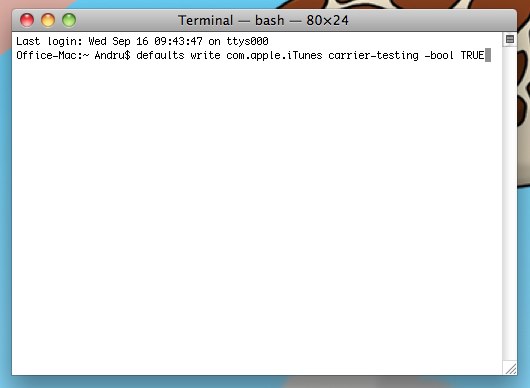
First things first, You need to enable IPCC updates, which is supported in iTunes 8.2 and 9.0. If you have either of those installed, you’re good. Here is how to enable IPCC on OS X and Windows 2000, XP, and Vista:
Mac OS X:
- Close iTunes if it is open
- Start Terminal (Applications > Utilities)
- Run the following command: defaults write com.apple.iTunes carrier-testing -bool TRUE
Windows 2000/XP/Vista (32-bit):
- Go to Start -> Run (
- type in “cmd” and hit enter
- Type/copy+paste this into the command console that comes up: “C:Program FilesiTunesiTunes.exe” /setPrefInt carrier-testing 1
- Hit enter
Windows XP/Vista (64-bit):
- Go to Start -> Run (
- type in “cmd” and hit enter
- Type/copy+paste this into the command console that comes up: “C:Program Files (x86)iTunesiTunes.exe” /setPrefInt carrier-testing 1
- Hit enter
Okay, now that that’s done, you are ready to update your iPhone with a modified carrier file bundle. Don’t worry, this won’t break anything. All it will do is give you an extra menu in the Network settings area, where you can enter the network settings that will enable MMS.
Right-click and save this file to your computer. Once you have it, follow the following steps:
- Download the file to some location on your computer
- Plug in your iPhone
- Start iTunes
- Click on your iPhone in the device listing in iTunes
- Alt-Click the “Check for Update” button (Shift-click in Windows)
- Browse to where you saved the IPCC you downloaded
- Select the file and click Choose (or OK on windows)
- Reboot your iPhone
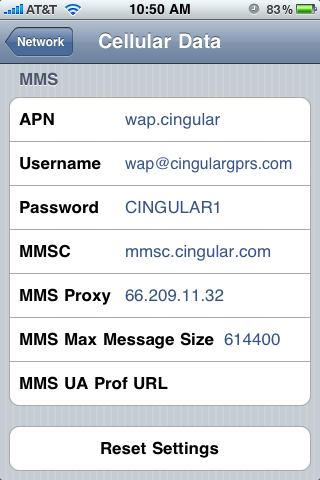
Okay, once your phone has rebooted, you just need to enter the appropriate settings that will allow MMS messages to be sent and received. To get where you need to be, go to Settings -> General -> Network area. You should see a new Celullar Data Network option. Go into that area, and enter the following settings:
- wap.cingular;
- Username: wap@cingulargprs.com;
- Password which is case sensitive: CINGULAR1;
- mmsc.cingular.com;
- MMS Proxy: 66.209.11.32
Now back out of that menu, because we are all done, my friends.
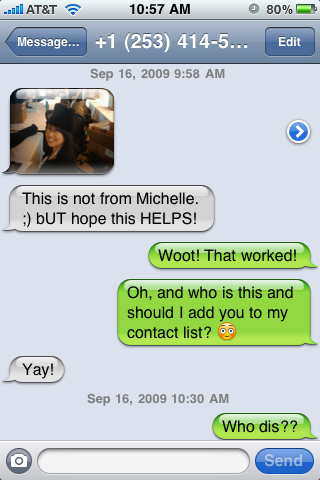
You should now be able to both send and receive MMS messages from your iPhone 3G or iPhone 3GS, enabling such riveting conversations as the one above.
Big props to Aaron Krill and SoftSailor for the parts they played in getting all of this to work!

- Related Tags:
- adslice, apple, att, cell phones, cellphones, enable iphone mms, hacks, how to, iphone, iphone 3g, iphone 3gs, iphone mms, mms, sidefeatured, smartphones, tutorials
Advertisement
Advertisement
Advertisement
© Gear Live Inc. – User-posted content, unless source is quoted, is licensed under a Creative Commons Public Domain License. Gear Live graphics, logos, designs, page headers, button icons, videos, articles, blogs, forums, scripts and other service names are the trademarks of Gear Live Inc.


Comments:
Ok lol i went through this too. IE renames the IPCC file to a .ZIP file. do not unzip it. instead rename the file extension to .IPCC then select it . Itunes will load it just fine
Reply to this: comment | thread
lol i got the same problem when i was trying to do it
when in the search box after you alt click or shift click under file name click on type of file n choose the 1 that sais “Iphone carrier configuration files”
itll show up ^_^
Reply to this: comment | thread
red exclamation noooooooooooo D:
sum1 heeeeeelllllllppppppppp :[
stupid At&T -___-
Reply to this: comment | thread
jst so pple wondering im writing these comments as help ^_^
ok well Dr idk about you but all i did was save the iccp file cause cmd wasnt working for me either >.<
anyway i was able to do it without the cmd part :D
but i get red exclamation point :(
thou that really doesnt have anything to with downloading the software just sending photos
good luck to you i hoe yours works better than mine did T_T
Reply to this: comment | thread
FYI, enabling mms DISABLES tethering.
Reply to this: comment | thread
I tried this and it’s a NO GO… ((sigh))
Reply to this: comment | thread
Has anybody found a way to get around the red exclamation? I’ve done everything I can and still no luck… I have the 3GS wht32gb and can’t get the red x to go away at all. Help if you can!
Reply to this: comment | thread
I noticed that my “mms opt out” is still on my account so until that goes away this work around will not work correct?
<Lay Swinger
9/16/09 3:00 pm
If you get an error (the red exclamation point) then AT&T hasn’t enabled MMS on your account yet. They won’t have everyone done until the 25th.>
Reply to this: comment | thread
How do you know If you enter the command right?
Reply to this: comment | thread
I can’t get it to work either. I give a error when I try the command on the cmd prompt.
:-(
Reply to this: comment | thread
Finally got it. Not sure it works though, sent a pix to my wifes phone and the message had a download error.
Reply to this: comment | thread
it works!! mac os x 10.6, iphone 3.1
Reply to this: comment | thread
when i try to send a pic i get a RED Exclamation Mark whyy!??? Help???
Reply to this: comment | thread
I made the mistake of commenting on this. so now i keep getting emails. almost all of them are people who are not reading previous posts. AT&T has not give out unlock codes to all phones yet. so it only works on certain phones. not all will work.
Reply to this: comment | thread
Is it just me or is your battery life absolutely horrible since enabling the mms with this hack?
Reply to this: comment | thread
Make sure you download the file with firefox not Internet Explorer. Internet explorer changes the file from a “IPCC” to a zip file.
Reply to this: comment | thread
My safari will not open the IPCC file that I download… WHY?!?!?!
Reply to this: comment | thread
No go in metro ATL. I guess I will have to wait for the rollout next week. Thanks for the info.
Reply to this: comment | thread
Awesome Awesome Awesome!
Reply to this: comment | thread
Done
Reply to this: comment | thread
Worked like a charm! Thanks so much
Reply to this: comment | thread
I messed up a couple times on enabling the IPCC file thingy.
THE SOLUTION:
In: “C:\Program Files\iTunes\iTunes.exe” /setPrefInt carrier-testing 1 /setPrefInt, the fInt part has no L in it, its an uppercase i (I). So Prefint but with an uppercase i (I).
Works perfect for me btw on my V3.1 iPhone 3GS.
Thanks.
Reply to this: comment | thread
My wife has a 3G, I have a 3GS. This works on her phone and not mine. We are on the same account, but not the family share plan. If we are on the same account, shouldn’t it work for both?
Reply to this: comment | thread
2004 on mms. Not in games and Internet browsing. Now we’re in 3009. Unless your rockin that iPhone 4GS. iPhone bitch!!!!
Reply to this: comment | thread
I got the red stab of death.. damnit
Reply to this: comment | thread
Yeah we’re on 2004 for MMS, buy in everything else we are way beyond any other (as Apple often says: 10 years ahead!) And if his phone has all the good stuff like playing 3D games, Internet browsing, best touch screen tecnology, etc. and/or has a better phone, thne he probably has the iPhone 4GS… :s iPhone Bitch!
(On behalf of Pedro and Manfred)
Reply to this: comment | thread
It was working, but this afternoon I’m getting the red exclamation. A lot of trouble to get it working, now, nothing! I hope it starts back on the 25th.
Reply to this: comment | thread
Mine is getting hung up on sending it’s almost to the end but not moving
Reply to this: comment | thread
NM red exclamation points!!! Ahhh!
Reply to this: comment | thread
i cant find the file because when i shift click check for update it wont show ipcc files. WHY!!!!!!!!!!!!!!!!!!!!!!!!!!!!!!!!!!!!!!!!!!!!!!!!!!!!!!!!!!!!!!!!!!!!!!!!!!??????????????????????????????
Reply to this: comment | thread
this is the best video i’ve seen so far and it works perfectly if you use the video then add the settings info above
Reply to this: comment | thread
http://www.youtube.com/watch?v=nByjfsJzFb0
sorry forgot to add the link….lol
Reply to this: comment | thread
I got a syntax error message when copy pasting the command line into the command prompt. But beyond that, the winzip file that downloads isn’t recognizable as an ipsw. I don’t get how that would even work. I have XP and I use safari browser. How can I keep it from downloading the file as a WINZIP file?! How can I make it appear as an ipsw like iTunes needs?
Reply to this: comment | thread
How can you get it to change the file type from winzip to ipcc??
Reply to this: comment | thread
I’m currently using a jailbroken 3GS on 3.0.1 firmware and after locating the .ipcc file and clicking update, the update hangs at “Updating Carrier Settings…” and I’m required to force quit it.
Any ideas on what could be causing this and how I could fix it? Thanks in advance
Reply to this: comment | thread
i got it to work but it only sends pictures out….i cant get any incoming pictures…has anyone had this problem and how did you fix it????
Reply to this: comment | thread
Worked for this guy, cheers!
Reply to this: comment | thread
Re-Tested Metro ATL. It is working like a charm!!!
Reply to this: comment | thread
I see a lot of people posting that they can’t see the .ipss file and that iTunes keeps asking for the .ipsw file.
I had this same problem until I did a few things.
First, I’m on Windows XP, using Internet Explorer.
I right clicked on the file and saved it to my desktop. IE did NOT rename the file as a zip file as people are stating here. It saved it as an .ipcc file.
Second, make sure your phone is unplugged. Also, to into task manager and look at the processes that are running. Anything related to iTunes or iPod, end those processes (and obviously close iTunes).
Then run the command prompt and type in the command noted above. Note, when typing this, there is no space between the “/ (in the instructions it looks like there is a space there).
Then, plug in your phone. Then launch iTunes.
NOW when you shift-click it should give you the option of choosing between the .ipsw and .ipcc file.
Reply to this: comment | thread
ok so i got the update installed and i see all the setting. Got everything working ok up until i try to send a message i get the red exclamation mark.
Called ATT and told them my phone “suddenly” started showing the ability to attach pic’s and contact info but won’t send. They told me there is nothing they can do until friday.
Anyone have any ideas?
Reply to this: comment | thread
use this, this works not the actual directions i not l (A+++)
Reply to this: comment | thread
When i do it the only file i am able to look up is ipsw and the downloaded file is ipcc. Did I do something wrong?
Reply to this: comment | thread
Nevermind i got it my issue was the i L deal posted earlier. Thanks steven
Qoute
I messed up a couple times on enabling the IPCC file thingy.
THE SOLUTION:
In: “C:\Program Files\iTunes\iTunes.exe” /setPrefInt carrier-testing 1 /setPrefInt, the fInt part has no L in it, its an uppercase i (I). So Prefint but with an uppercase i (I).
Works perfect for me btw on my V3.1 iPhone 3GS.
Thanks.
Reply to this: comment | thread
IF you are getting the issue on a Mac where it does not allow you to select the ipcc file. Close iTunes and put this in:
defaults write com.apple.iTunes carrier-testing -bool FALSE
then:
defaults write com.apple.iTunes carrier-testing -bool TRUE
now you should be able to select the ipcc and update the carrier.
I still get red exclamations when sending though…
Reply to this: comment | thread
Be careful if you’re doing this with a jailbroken iPhone 3g. I just tried the method above and it wont’ get past the pineapple.
Reply to this: comment | thread
MMS works but it killed my visual voicemail. Not a huge problem but I’m not getting any notification that I’ve got any voicemail at all!
Reply to this: comment | thread
I did this hack a few days ago but MMS just started working last night. I’m in Eastlake, OH. My visual voicemail stopped working so I pressed the voicemail button and it started dailing my voicemail, I then pressed * to exit. Then a little screen popped up on my phone asking for my voicemail password, I put that in and now visual voicemail works. Everything is working fine!
iPhone 3GS
OS 3.1
iTunes 9
Reply to this: comment | thread
This didn’t work for me when I tried it last week, but this morning it suddenly started working! Cool!
Reply to this: comment | thread
Thanks. File worked perfectly for me on os 3.0 on a 3gs. I had already done the tether activation when I first got the phone so I did nto have to enter any carrier information and it is all working perfectly. No wifi issues or anything…
Reply to this: comment | thread
Worked fine for me on a jailbroken phone.
Reply to this: comment | thread
Comments: Page 2 of 3 pages < 1 2 3 >