We’re giving away a limited edition Modern Warfare 2 Xbox 360 bundle!
We are kicking off our holiday giveaways with a bang! We’ve teamed with our friends at shoot it! to bring you this Modern Warfare 2 Xbox 360 limited edition console, a $400 value. The bundle includes a custom Xbox 360 console with exclusive design, a 250GB Xbox 360 hard drive, Call of Duty Modern Warfare 2, a pair of black controllers, and more. It hits stores on November 10th, and we’ve pre-ordered one that we’re giving away to one of you. Be sure to check out the giveaway rules to see how to enter!
Latest Video: Bleeding Edge TV 325: HP Envy 13 and Envy 15 notebook computersx
Get a look at the new HP Envy 13, Envy 15, and Envy 15 Beats Limited Edition notebooks in this episode!Play Video
Wednesday September 16, 2009 11:33 am
Don’t wanna wait for iPhone MMS? Enable it right now!

Okay, we were all disappointed by AT&T’s decision to delay iPhone MMS to early fall, but that doesn’t stop ambitious folks such as ourselves from finding a way around it. And we have. I can confirm that I was able to get MMS working on my iPhone 3GS with about 3 minutes worth of effort. You wanna do it to? Read on for complete instructions for enabling MMS on iPhone 3.1.
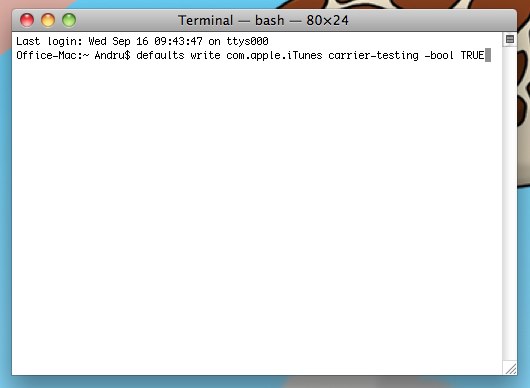
First things first, You need to enable IPCC updates, which is supported in iTunes 8.2 and 9.0. If you have either of those installed, you’re good. Here is how to enable IPCC on OS X and Windows 2000, XP, and Vista:
Mac OS X:
- Close iTunes if it is open
- Start Terminal (Applications > Utilities)
- Run the following command: defaults write com.apple.iTunes carrier-testing -bool TRUE
Windows 2000/XP/Vista (32-bit):
- Go to Start -> Run (
- type in “cmd” and hit enter
- Type/copy+paste this into the command console that comes up: “C:\Program Files\iTunes\iTunes.exe” /setPrefInt carrier-testing 1
- Hit enter
Windows XP/Vista (64-bit):
- Go to Start -> Run (
- type in “cmd” and hit enter
- Type/copy+paste this into the command console that comes up: “C:\Program Files (x86)\iTunes\iTunes.exe” /setPrefInt carrier-testing 1
- Hit enter
Okay, now that that’s done, you are ready to update your iPhone with a modified carrier file bundle. Don’t worry, this won’t break anything. All it will do is give you an extra menu in the Network settings area, where you can enter the network settings that will enable MMS.
Right-click and save this file to your computer. Once you have it, follow the following steps:
- Download the file to some location on your computer
- Plug in your iPhone
- Start iTunes
- Click on your iPhone in the device listing in iTunes
- Alt-Click the “Check for Update” button (Shift-click in Windows)
- Browse to where you saved the IPCC you downloaded
- Select the file and click Choose (or OK on windows)
- Reboot your iPhone
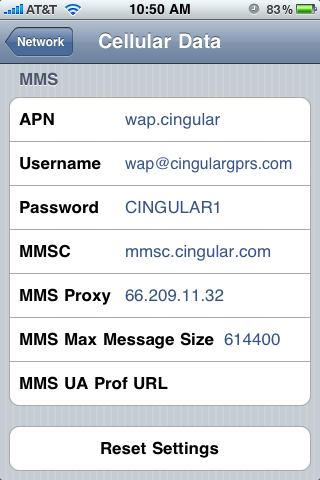
Okay, once your phone has rebooted, you just need to enter the appropriate settings that will allow MMS messages to be sent and received. To get where you need to be, go to Settings -> General -> Network area. You should see a new Celullar Data Network option. Go into that area, and enter the following settings:
- wap.cingular;
- Username: wap@cingulargprs.com;
- Password which is case sensitive: CINGULAR1;
- mmsc.cingular.com;
- MMS Proxy: 66.209.11.32
Now back out of that menu, because we are all done, my friends.
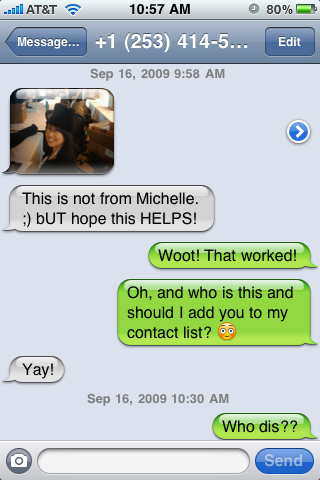
You should now be able to both send and receive MMS messages from your iPhone 3G or iPhone 3GS, enabling such riveting conversations as the one above.
Big props to Aaron Krill and SoftSailor for the parts they played in getting all of this to work!

- Related Tags:
- adslice, apple, att, cell phones, cellphones, enable iphone mms, hacks, how to, iphone, iphone 3g, iphone 3gs, iphone mms, mms, sidefeatured, smartphones, tutorials
Advertisement
Advertisement
Advertisement
© Gear Live Inc. {year} – User-posted content, unless source is quoted, is licensed under a Creative Commons Public Domain License. Gear Live graphics, logos, designs, page headers, button icons, videos, articles, blogs, forums, scripts and other service names are the trademarks of Gear Live Inc.

Digg This


Comments:
iPhone users now get MMS. Congrats iPhone users…welcome to 2004!
Reply to this: comment | thread
Hmmm… I get an error whenever I send.
Reply to this: comment | thread
It works great, thank you so much! I’ve missed having MMS!
Reply to this: comment | thread
Same here, it says sending but ends up just giving me the little red exclamation point.
Reply to this: comment | thread
worked for me too! thanks!
Reply to this: comment | thread
Yes Yes Yes!!! This actually worked. I was skeptical at first, but when I tried it, it worked!!! Thank you guys for posting this!!! (All this excitement over MMS, I know…lame)
Reply to this: comment | thread
So I do what it says but when I look for the IPCC it’s not there?? Help plz??
Reply to this: comment | thread
nope.. red exclamation point after trying to send
Reply to this: comment | thread
Red exclamation point. Any ideas on how to get this working?
Reply to this: comment | thread
grrrr…... why does this work for some people and not me? lol
Reply to this: comment | thread
I was excited to see this post, but quickly realized Apple isn’t allowing MMS on the iPhone 2G, which I currently own. It’s really idiotic that a feature such as MMS which dates back 5+ years isn’t being supported on ALL iPhones.
Reply to this: comment | thread
yes yes yes we all know that it is ######## and how it is stupid it took them this long. BUT now lets try and figure out why the hell this isnt working for us 3Gs owners.
Reply to this: comment | thread
How about visual voicemail?
Reply to this: comment | thread
Works on 3.0, jailbroken, with iTunes 9.0. Had a few hurdles to get through, here’s some tips.
First, if you can’t enable updating your carrier files, you may need to change to the iTunes directory manually and then run iTunes.exe setPrefInt carrier-testing 1. That helps take a lot of guesswork out of which command to run.
Second, if you try to update and get an unknown error, and you are jailbroken, a likely cause is the updated AT&T Carrier Logo. Go into Cydia, Manage, Packages, select the carrier logo package, click Modify, and Remove it. Reboot your phone. Once you’re booted back up, you should be able to update your IPCC. Reboot again, then feel free to reinstall that carrier logo.
Reply to this: comment | thread
FYI, Visual Voicemail works, Chad. Tested that second, just to be sure. Make sure you follow the directions closely for your MMS settings. If you change the Cellular Data settings, you may break it. Cellular Data, and Visual Voicemail don’t need any changes.
Reply to this: comment | thread
You guys need to update the insctructions to use “cmd” instead of command.
Command is an old function that does not work 100%
Reply to this: comment | thread
woooo it works
Reply to this: comment | thread
Greenmonkey3 - I have the same error… did u receive any help?
Reply to this: comment | thread
nope. i kind of gave up.
Reply to this: comment | thread
wow…all these fellow iphoners and no help…
Reply to this: comment | thread
Worked perfectly on non jailbroken iPhone running 3.1. Thanks for helping me out Andru. U da man, dog!!!
Reply to this: comment | thread
lame. this is not working for me.
Reply to this: comment | thread
No MMS for me still get the red! mark LAME I Want my MMS already do you have to fill the cellular data part out too?
Reply to this: comment | thread
No =// ugh nobody is help on here
Reply to this: comment | thread
If you get an error (the red exclamation point) then AT&T hasn’t enabled MMS on your account yet. They won’t have everyone done until the 25th.
I had the beta of 3.1 and had the MMS button, but when I tried sending an MMS I got that same error. The day 3.1 came out I was finally able to send MMS’s but I lost the button when I upgraded. This worked. I got my button back and can send MMS’s again.
Reply to this: comment | thread
No. Do not change anything but the MMS settings.
Reply to this: comment | thread
good point. that is what is wrong. i will just have to wait then. thank you.
Reply to this: comment | thread
Got it working! iPhone 3GS Only thing I’m not liking is the format of replies from non-AT&T people. It’s like an email where it has the previous message and time stamps…
Reply to this: comment | thread
I’m stuck in the first step where I have to put the command. It gives me an error. Is there another way because I paste the command and nothing happens. Please help!!
Reply to this: comment | thread
Don’t copy and paste the command, just type it in. If you’re not an admin on the machine, add su in front of the command and you’ll have to enter your password (this makes you a super user).
Reply to this: comment | thread
Not working for me either. Bollocks.
Reply to this: comment | thread
not working on my 3.0.1 jailbroken
Reply to this: comment | thread
Does anyone kno if the change to iTunes.exe, will hav any effect on later updates.
Especially, since I was unable to get this to work, will it interfere with the AT&T MMS update??
Reply to this: comment | thread
iTunes is looking for a .ipsw file, NOT .ipcc—can I rename the extension? What else can I do to get this to work?
Reply to this: comment | thread
Worked like a charm the first time despite in the command prompt getting some sort of error message…yes sir!!!
Reply to this: comment | thread
Ok it doesnt show any file when searching for IPCC. iv even manaully tried to use all the files. Is there something im missing here. Im using windows Vista. followed the steps. it finds no IPCC n or .Ipsw file any suggestions anyone?
Reply to this: comment | thread
I still cant find the IPCC file, but for those of you haveing problems with the CMD prompt. Go to the File where your iTunes.exe is stored Shift+right click on the file. Select open up command prompt here. it will open up in the path and you can then run the iTunes.exe setPrefInt carrier-testing 1
Reply to this: comment | thread
Ok One Issue i figuered out. IE will rename the IPCC to a .zip file. You need to rename the file extension to .IPCC and it will load. lol 2 hours later (3 mins my ass ) i got it working. except i get the red exclamation points DAMN IT ALL TO HELL !!!
Reply to this: comment | thread
Worked perfectly for me. Yay!
Reply to this: comment | thread
care to share how you did it without encountering the problems everyone else is having?
Reply to this: comment | thread
Okay, I got it to work also…. 2 hours ( I know I am a NERD)
for those not getting the IPCC to show up:
the extension is C:\Program Files\iTunes\iTunes.exe” /setPrefint carrier-testing 1 (not the letter next to the f in setPrefint it the letter “i” not L. That allows you to find the IPCC.
The above file path may not be where you installed itunes, that is the file path to put in. outside of the above I followed and got all of this to work.
OHHH YEA Close Itunes and UNPLUG your Iphone while doing the above steps. Make sure all itunes files are closed (CTRL+ALT+DELETE) and look in Proccess. I hope this helps!
Reply to this: comment | thread
Parajumper80:
After you load the IPCC and restart phone re-check in the Iphone Settings, general, network, Cellular data network make sure that is filled out as above…. had the red X until i had that exact.
Hope this helps!
Reply to this: comment | thread
Yea i have it exact. I even tried playing around with the settings i found from another forum concerning this procedure. nada. from what i have gathered a lot of people are having same problem and not everyone has been unblocked yet
Reply to this: comment | thread
Works perfect for me…thanks
Reply to this: comment | thread
could you help me?
Reply to this: comment | thread
remove TRUE from the end of the command line for apple terminal.that worked for me to see the file
Reply to this: comment | thread
So I do what it says but when I look for the IPCC it’s not there?? Help plz??
Reply to this: comment | thread
Read my post above about renaming the IPCC
Reply to this: comment | thread
I hav Vista-32…the downloaded file becomes a zip file. I xtract 2 files _MACOSX & Payload. After clicking on Update, I go to Payload, then ATT_US.bundle then 18 files are displayed and choose English.Iproj, at which point is says “No items match your search”. The folder is empty.
Wat am i doing wrong…..
Reply to this: comment | thread
ok i have a vista 64 can you please walk me thru and tell me where i can find the zip file because i’ve been trying for hours
Reply to this: comment | thread
Comments: Page 1 of 3 pages 1 2 3 >